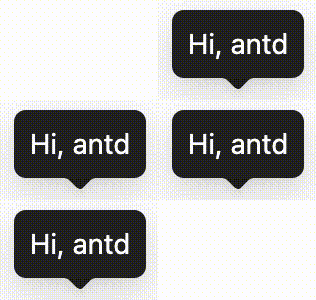
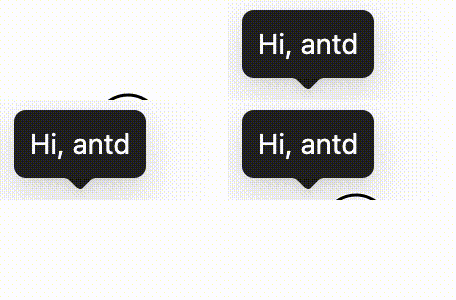
---
category: Components
group: Data Display
title: Tooltip
description: Simple text popup box.
cover: https://mdn.alipayobjects.com/huamei_7uahnr/afts/img/A*9LKlRbWytugAAAAAAAAAAAAADrJ8AQ/original
coverDark: https://mdn.alipayobjects.com/huamei_7uahnr/afts/img/A*bCbPTJ7LQngAAAAAAAAAAAAADrJ8AQ/original
demo:
cols: 2
---
## When To Use
- The tip is shown on mouse enter, and is hidden on mouse leave. The Tooltip doesn't support complex text or operations.
- To provide an explanation of a `button/text/operation`. It's often used instead of the html `title` attribute.
## Examples
### Basic
The simplest usage.
```tsx
import React from 'react';
import { Tooltip } from 'antd';
const App: React.FC = () => (
Tooltip will show on mouse enter.
);
export default App;
```
### Smooth Transition
Configure Tooltip unique display through [ConfigProvider global configuration](#config-provider-tooltip-unique) to achieve smooth transition effects with only one Tooltip displayed at a time.
```tsx
import React from 'react';
import { Button, ConfigProvider, Flex, Tooltip } from 'antd';
const SharedButton = ({ placement = 'top' }: { placement?: 'top' | 'bottom' }) => (
);
const App: React.FC = () => {
return (
);
};
export default App;
```
### Placement
There are 12 placement options available.
```tsx
import React from 'react';
import { Button, ConfigProvider, Flex, Tooltip } from 'antd';
const text = prompt text;
const buttonWidth = 80;
const App: React.FC = () => (
);
export default App;
```
### Arrow
Support show, hide or keep arrow in the center.
```tsx
import React, { useMemo, useState } from 'react';
import { Button, ConfigProvider, Flex, Segmented, Tooltip } from 'antd';
import type { TooltipProps } from 'antd';
const text = prompt text;
const buttonWidth = 80;
const App: React.FC = () => {
const [arrow, setArrow] = useState<'Show' | 'Hide' | 'Center'>('Show');
const mergedArrow = useMemo(() => {
if (arrow === 'Hide') {
return false;
}
if (arrow === 'Show') {
return true;
}
return {
pointAtCenter: true,
};
}, [arrow]);
return (
);
};
export default App;
```
### Auto Shift
Auto adjust Popup and arrow position when Tooltip is close to the edge of the screen. Will be out of screen when exceed limitation.
```tsx
import React from 'react';
import { Button, Tooltip } from 'antd';
const style: React.CSSProperties = {
width: '300vw',
height: '300vh',
display: 'flex',
alignItems: 'center',
justifyContent: 'center',
};
const App: React.FC = () => {
React.useEffect(() => {
document.documentElement.scrollTop = document.documentElement.clientHeight;
document.documentElement.scrollLeft = document.documentElement.clientWidth;
}, []);
return (
);
};
export default App;
```
### Colorful Tooltip
We preset a series of colorful Tooltip styles for use in different situations.
```tsx
import React from 'react';
import { Button, Divider, Space, Tooltip } from 'antd';
const colors = [
'pink',
'red',
'yellow',
'orange',
'cyan',
'green',
'blue',
'purple',
'geekblue',
'magenta',
'volcano',
'gold',
'lime',
];
const customColors = ['#f50', '#2db7f5', '#87d068', '#108ee9'];
const App: React.FC = () => (
<>
Presets
{colors.map((color) => (
))}
Custom
{customColors.map((color) => (
))}
);
export default App;
```
### Disabled
The Tooltip can be disabled by setting `title={null}` or `title=""`.
```tsx
import React, { useState } from 'react';
import { Button, Tooltip } from 'antd';
const App: React.FC = () => {
const [disabled, setDisabled] = useState(true);
return (
);
};
export default App;
```
### Wrap custom component
Use with a custom component.
```tsx
import React from 'react';
import { Tooltip } from 'antd';
const ComponentWithEvents = React.forwardRef>(
(props, ref) => (
This text is inside a component with the necessary events exposed.
),
);
const App: React.FC = () => (
);
export default App;
```
### Custom semantic dom styling
You can customize the [semantic dom](#semantic-dom) style of Tooltip by passing objects/functions through `classNames` and `styles`.
```tsx
import React from 'react';
import { Button, Flex, Tooltip } from 'antd';
import type { TooltipProps } from 'antd';
import { createStaticStyles } from 'antd-style';
const classNames = createStaticStyles(({ css }) => ({
container: css`
padding: 10px;
`,
}));
const styles: TooltipProps['styles'] = {
container: {
borderRadius: 12,
boxShadow: 'inset 0 0 8px #ccc',
},
};
const stylesFn: TooltipProps['styles'] = (info) => {
if (!info.props.arrow) {
return {
container: {
backgroundColor: 'rgba(53, 71, 125, 0.8)',
padding: 12,
color: '#fff',
borderRadius: 4,
},
} satisfies TooltipProps['styles'];
}
return {};
};
const App: React.FC = () => {
return (
);
};
export default App;
```
## API
Common props ref:[Common props](/docs/react/common-props)
| Property | Description | Type | Default | Version |
| --- | --- | --- | --- | --- |
| title | The text shown in the tooltip | ReactNode \| () => ReactNode | - | - |
| color | The background color. After using this attribute, the internal text color will adapt automatically | string | - | 5.27.0 |
| classNames | Semantic DOM class | Record<[SemanticDOM](#semantic-dom), string> \| (info: { props }) => Record<[SemanticDOM](#semantic-dom), string> | - | |
| styles | Semantic DOM style | Record<[SemanticDOM](#semantic-dom), CSSProperties> \| (info: { props }) => Record<[SemanticDOM](#semantic-dom), CSSProperties> | - | |
### Common API
### ConfigProvider - tooltip.unique {#config-provider-tooltip-unique}
You can configure global unique display for Tooltip through ConfigProvider. When `unique` is set to `true`, only one Tooltip under the ConfigProvider will be displayed at the same time, providing better user experience and smooth transition effects.
Note: After configuration, properties like `getContainer`, `arrow` etc. will be ignored.
```tsx
import { Button, ConfigProvider, Space, Tooltip } from 'antd';
export default () => (
);
```
## Semantic DOM
https://ant.design/components/tooltip/semantic.md
## Design Token
## Component Token (Tooltip)
| Token Name | Description | Type | Default Value |
| --- | --- | --- | --- |
| maxWidth | Max width of tooltip | number | 250 |
| zIndexPopup | z-index of tooltip | number | 1070 |
## Global Token
| Token Name | Description | Type | Default Value |
| --- | --- | --- | --- |
| borderRadius | Border radius of base components | number | |
| borderRadiusXS | XS size border radius, used in some small border radius components, such as Segmented, Arrow and other components with small border radius. | number | |
| boxShadowSecondary | Control the secondary box shadow style of an element. | string | |
| colorBgSpotlight | This color is used to draw the user's strong attention to the background color, and is currently only used in the background color of Tooltip. | string | |
| colorText | Default text color which comply with W3C standards, and this color is also the darkest neutral color. | string | |
| colorTextLightSolid | Control the highlight color of text with background color, such as the text in Primary Button components. | string | |
| controlHeight | The height of the basic controls such as buttons and input boxes in Ant Design | number | |
| fontFamily | The font family of Ant Design prioritizes the default interface font of the system, and provides a set of alternative font libraries that are suitable for screen display to maintain the readability and readability of the font under different platforms and browsers, reflecting the friendly, stable and professional characteristics. | string | |
| fontSize | The most widely used font size in the design system, from which the text gradient will be derived. | number | |
| lineHeight | Line height of text. | number | |
| motionDurationFast | Motion speed, fast speed. Used for small element animation interaction. | string | |
| motionDurationMid | Motion speed, medium speed. Used for medium element animation interaction. | string | |
| motionDurationSlow | Motion speed, slow speed. Used for large element animation interaction. | string | |
| motionEaseInOutCirc | Preset motion curve. | string | |
| motionEaseOutCirc | Preset motion curve. | string | |
| paddingSM | Control the small padding of the element. | number | |
| paddingXS | Control the extra small padding of the element. | number | |
| sizePopupArrow | The size of the component arrow | number | |
## FAQ
### Why doesn't HOC work sometimes? {#faq-hoc-component}
Please ensure that the child elements of `Tooltip` can accept `onMouseEnter`, `onMouseLeave`, `onPointerEnter`, `onPointerLeave`, `onFocus`, `onClick` events.
Please refer to https://github.com/ant-design/ant-design/issues/15909
### Why Tooltip not update content when close? {#faq-content-not-update}
Tooltip will cache content when it is closed to avoid flicker when content is updated:
```jsx
// `title` will not blink when `user` is empty
```
If need update content when close, you can set `fresh` property ([#44830](https://github.com/ant-design/ant-design/issues/44830)):
```jsx
```